The Problem With Every Infinite Canvas Tool You’ve Used
Open Miro, FigJam, or any other infinite canvas tool and try saving a website to it. You’ll get a screenshot. A flat, dead image. You can zoom in and see pixels blur. You can’t scroll the page, hover a button, or check how the navigation actually works on mobile. The website is frozen the moment you captured it.
For web and UI designers, that’s a fundamental limitation. Your inspiration isn’t images of websites — it’s websites. Live, scrollable, interactive ones. And no infinite canvas tool has been built with that in mind.
Until Bookmarkify’s canvas mode.
What Makes Bookmarkify’s Infinite Canvas Different
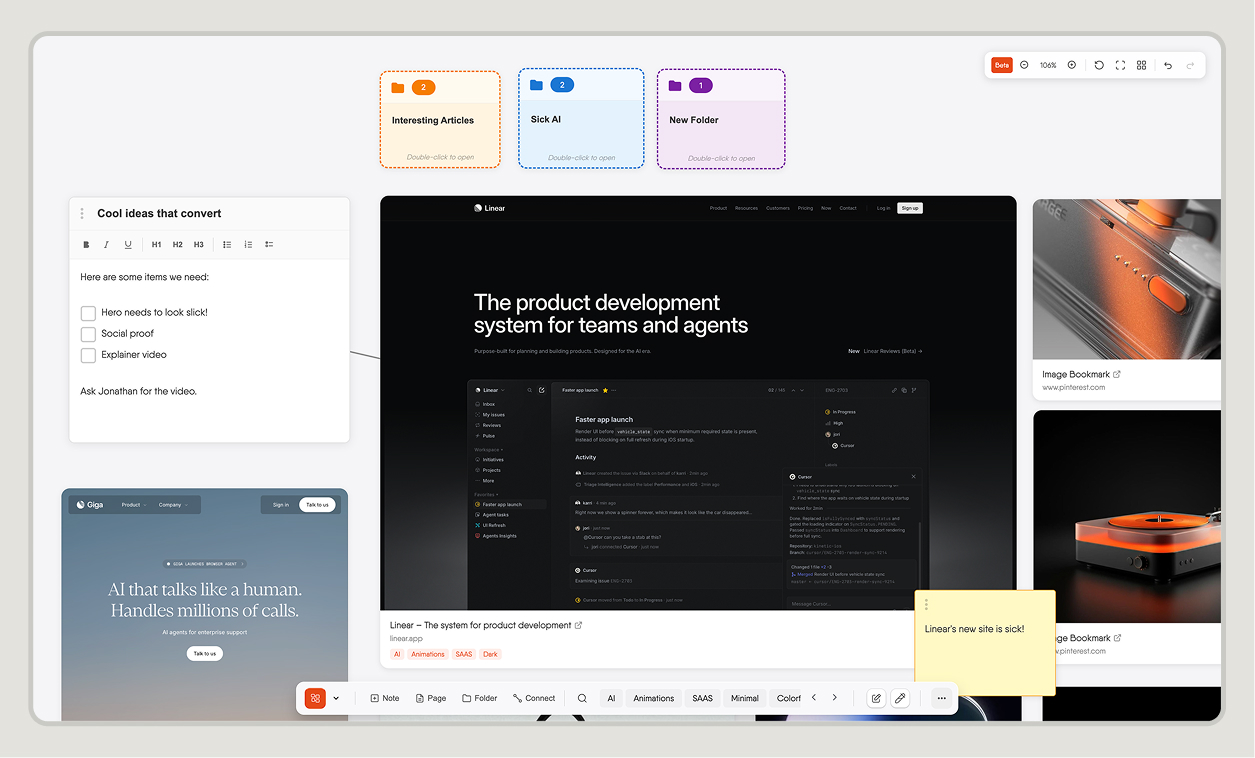
Bookmarkify’s canvas is, on the surface, exactly what you’d expect from an infinite canvas tool: an open, boundless workspace where you can drag content around, resize cards, zoom in and out, add notes, create folders, and draw connections between ideas. All the things you know from Miro or FigJam.
But the content sitting on that canvas isn’t static. Every website you save to Bookmarkify stays fully interactive inside its card. You can scroll it. Click through it. Check how the mobile layout behaves. Inspect the hover states. Watch animations play. The website is alive — and it’s right there on your canvas, next to your notes, next to other sites, next to your thinking.
That’s a fundamentally different kind of tool for a fundamentally different kind of workflow.
What You Can Actually Do on the Canvas
The canvas isn’t just a display surface. It’s a full working environment built around how designers actually think through projects.
Freely Resize and Reposition Saved Websites
Every saved website sits in a resizable card. Make it small to keep it as a reference thumbnail, or expand it to full size to actually browse it. Drag cards anywhere. Group them spatially by theme, workflow stage, client, or whatever mental model you’re working with. There’s no grid forcing you into a structure — the layout is entirely yours.
Add Notes Directly on the Canvas
Hit the Note button in the toolbar and drop a rich text note anywhere on the canvas. You get proper formatting — bold, italic, headings, bullet lists — right there alongside your inspiration. Use notes to capture what you like about a site, brief a collaborator, or write down what you want to steal from a layout before you forget it.
Create Pages and Folders
A single canvas can hold everything, or you can break projects into pages. Use folders to group related content, create a page per client, or build one canvas per project phase. The structure scales with how you work — minimal if you work alone, more organized if you’re sharing it with a team.
Draw Connections Between Content
The Connect tool lets you draw lines between any two pieces of content on the canvas. Link a website to a note explaining why you saved it. Connect two sites that share a design pattern you want to reference. Draw a relationship between a reference and the design you’re building from it. It’s the kind of spatial thinking that a folder system can never replicate.
Tag Content and Filter Instantly
Everything on your canvas can be tagged. The toolbar at the bottom shows your active tags as quick filters — switch between Animations, SAAS, Portfolio, Minimal, or whatever taxonomy you’ve built. Useful when a canvas gets dense and you need to focus on one thread.
Zoom From Overview to Detail
The canvas supports full zoom control. Pull back to 30–40% to see everything at once. Zoom in to 100–130% to actually browse a saved website and inspect details. This is the workflow that screenshots destroy: you can never zoom a static image into something you can actually interact with.
How Web Designers Are Using It
The most natural use for the canvas is competitive research and inspiration mapping. Before starting a project, save 10–15 relevant sites — direct competitors, indirect inspiration, sites with interesting UI patterns — and arrange them spatially on a canvas. Because the websites are live, you’re not guessing what a layout does on mobile. You switch the card to mobile view, scroll through it, and see exactly how they handled the breakpoint. You hover a button and see the transition.
A second common use is client presentation and handoff. Build a canvas that shows the reference landscape you’ve been working from, annotated with notes explaining your thinking. Connect references to the design decisions they influenced. Share the canvas with a client and give them the same live, interactive view you’ve been working with — not a PDF of screenshots they’ll misread.
Teams also use it for collaborative inspiration gathering. Add teammates to a workspace and let everyone drop sites onto a shared canvas. No more “here’s a link in Slack” that nobody opens — the content is right there, visible, interactive, and in context.
Why Static Canvases Fall Short for Web Designers
The core tools in this space — Miro, FigJam, Notion, even Are.na — all treat websites as images. You screenshot a site and paste it onto a board. Immediately you’ve lost everything that matters about a web design: the motion, the scroll behavior, the hover states, the responsive layouts, the microinteractions. You’re left with a still frame of a medium that isn’t designed to be still.
This isn’t a minor inconvenience. It shapes how you reference and think about design. When all your inspiration is flat screenshots, you unconsciously start thinking about web design as if it’s flat too. Bookmarkify’s canvas is the only infinite canvas tool built around that reality.
Getting Started With the Canvas Mode
The canvas is accessible from within any Bookmarkify workspace. Save websites the usual way — via the browser extension or by pasting a URL — then switch to canvas view. Existing saves come in and you can start dragging, resizing, and adding notes immediately. The bottom toolbar keeps all the canvas tools within reach: Note, Page, Folder, Connect, and your tag filters.
If you’re starting a new project, the fastest workflow is to save 8–12 reference sites in one session, open the canvas, and spend 10 minutes arranging and annotating them before you open Figma. That 10 minutes of spatial, interactive reference review pays off every time you make a design decision.
Infinite Canvas Tools Compared
| Tool | Infinite Canvas | Live Website Previews | Notes on Canvas | Connect / Link | Built for Designers |
|---|
| Bookmarkify | ✓ | ✓ (fully interactive) | ✓ | ✓ | ✓ |
| Miro | ✓ | ✗ (screenshots only) | ✓ | ✓ | Partial |
| FigJam | ✓ | ✗ (screenshots only) | ✓ | ✓ | ✓ |
| Are.na | ✗ | ✗ (screenshots only) | Partial | ✗ | Partial |
| Notion | ✗ | ✗ | ✓ | ✗ | ✗ |
Frequently Asked Questions
What is an infinite canvas tool?
An infinite canvas tool is a digital workspace with no fixed borders — you can keep adding content in any direction without running out of space. Unlike a fixed page or artboard, the canvas expands as you need it. Most are used for brainstorming, mood boarding, project planning, and visual thinking.
How is Bookmarkify’s canvas different from Miro or FigJam?
The core difference is that Bookmarkify saves live, interactive websites — not screenshots. On a Miro or FigJam board, a saved website is a static image. On a Bookmarkify canvas, it’s a fully functional webpage inside a card: you can scroll it, interact with it, check mobile layouts, and watch animations play. For web and UI designers, that distinction changes how useful the canvas actually is.
Can I collaborate with a team on a Bookmarkify canvas?
Yes. Bookmarkify has a collaboration mode that lets you build a team and work on shared workspaces together. Teammates can add sites to a shared canvas, leave notes, and arrange content. It’s designed for the early stages of projects — competitive research, inspiration gathering, design direction — where the whole team needs to be aligned before anyone opens a design tool.
Does the canvas mode work for client presentations?
It works well for that use case. Rather than exporting a PDF of screenshots, you can share a live canvas with a client that shows the reference landscape you’ve been working from — annotated, connected, and fully interactive. Clients can browse the reference sites themselves, which gives them a much clearer sense of the design direction than static images do.
Is Bookmarkify’s infinite canvas free?
Bookmarkify offers a free plan that includes access to the canvas mode. Paid plans unlock additional features including expanded storage, team collaboration, and advanced workspace options.