Tame Chrome Mobile Bookmarks for Enhanced Workflow
Chrome mobile bookmarks - Master your Chrome mobile bookmarks. This guide for designers & researchers shows how to access, sync, organize, and export your
Last updated:
April 24, 2026
Chrome mobile bookmarks - Master your Chrome mobile bookmarks. This guide for designers & researchers shows how to access, sync, organize, and export your
Last updated:
April 24, 2026
SEO Title: Tame Chrome Mobile Bookmarks for Enhanced Workflow
Meta Description: Learn how to manage chrome mobile bookmarks for creative work. Find synced links faster, organize folders better, export safely, and build a cleaner research workflow.
You save a reference on your phone during a commute. A landing page. A type specimen. A competitor pricing page. A great onboarding flow. Two weeks later, you need it in a meeting, and it’s gone. Not deleted. Just buried.
That’s the problem with chrome mobile bookmarks. The issue usually isn’t saving links. It’s retrieving them when the moment matters.
For designers, developers, marketers, founders, and researchers, bookmarks aren’t casual clutter. They’re part of the job. They hold swipe files, product examples, research trails, bug references, and fragments of ideas that often become real work later. If the system is sloppy, your thinking gets sloppy with it.
<video
autoplay
muted
loop
playsinline
preload="auto"
style="width:100%; height:auto; border-radius: 6px;"
Chrome makes saving easy, which is exactly why collections become chaotic. A quick tap feels harmless in the moment. Repeat that across research sessions, client calls, late-night idea hunts, and weekend scrolling, and your bookmark list turns into a dumping ground.
Google’s sync system can support up to 100,000 bookmarks per account, according to Google Chrome bookmark sync limits. That scale is useful, but it also proves a point. Capacity isn’t the same as clarity.
Creative work depends on recall. You need to find the right reference at the right time, not just trust that it exists somewhere in a folder called “Inspiration” or “Read Later.”
A messy bookmark setup creates a few familiar problems:
Practical rule: If you can’t name why a bookmark matters when you save it, you probably won’t find it when you need it.
The fix isn’t “be more organized.” That advice rarely survives a busy week. What works is a system with low friction.
Use three layers:
That middle step matters most. Chrome is good at collecting. It’s less good at helping you think visually about what you’ve collected. For many creatives, that’s where native bookmarks start to feel cramped.
Still, the built-in system is worth learning well. Once you know where mobile bookmarks go, how sync behaves, and how search works, Chrome becomes much less frustrating.
The first problem is basic but common. People save links on mobile, then have no idea where those bookmarks land on desktop or why they aren’t showing up at all.
On Android, Chrome stores mobile-saved links in the Mobile bookmarks folder. In the app, open the three-dot menu and tap Bookmarks. On desktop Chrome, open the Bookmark Manager and look for the same folder if sync is working with the same Google account.
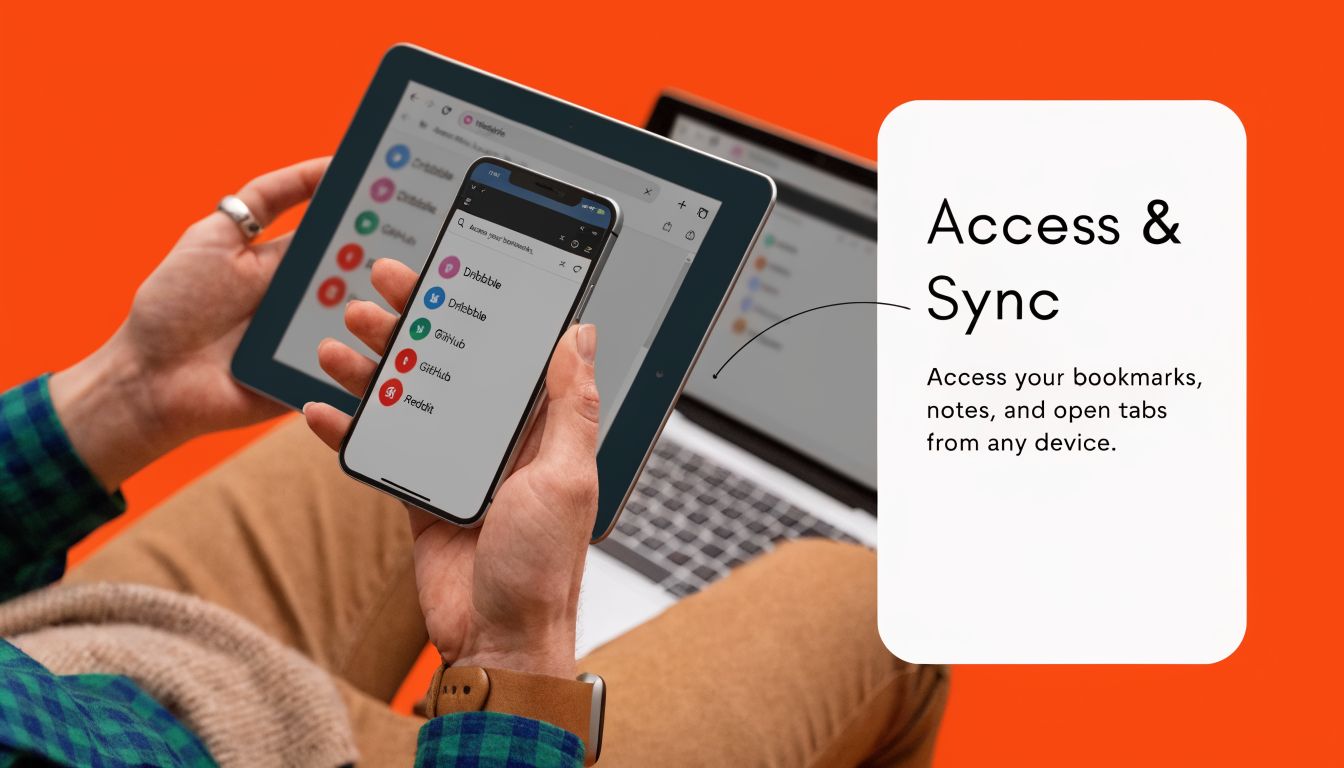
If your saved links feel split across devices, check these before doing anything more drastic:
If you’re moving from another browser first, it helps to clean that handoff before blaming sync. This guide on importing bookmarks from Safari to Chrome is useful if your collection started elsewhere.
This isn’t your imagination. Sync failures between Android and desktop are frequently reported in Google Support forums, where users describe mobile bookmarks failing to appear on other devices despite standard troubleshooting, as shown in this Chrome sync support thread.
That matters because many workflows depend on phone-to-desktop continuity. You spot a pattern on your phone, save it, and expect to review it later during focused work. When sync fails, your research chain breaks.
If a bookmark workflow depends on perfect sync every time, build in a backup habit. Export periodically. Don’t assume the browser is your archive strategy.
Try this in order:
If the test bookmark still doesn’t show, treat sync as unreliable for the moment and work from desktop export or manual reorganization instead of waiting for Chrome to sort itself out.
You save a reference on your phone during a commute, another while waiting for feedback, and five more late at night when an idea clicks. Two weeks later, you remember the concept but not the page title, folder, or exact wording. That is where bookmark clutter starts costing creative time.
A usable system has one job. Help you retrieve the right reference fast enough to keep momentum.
For creative work, folder structure usually works best in one of two models:
| Approach | Best for | Example folders |
|---|---|---|
| By project | client work, product launches, research sprints | Client A, Q3 Redesign, New Pricing Research |
| By reference type | ongoing inspiration libraries | UI Patterns, Copywriting, Motion, Typography, Competitors |
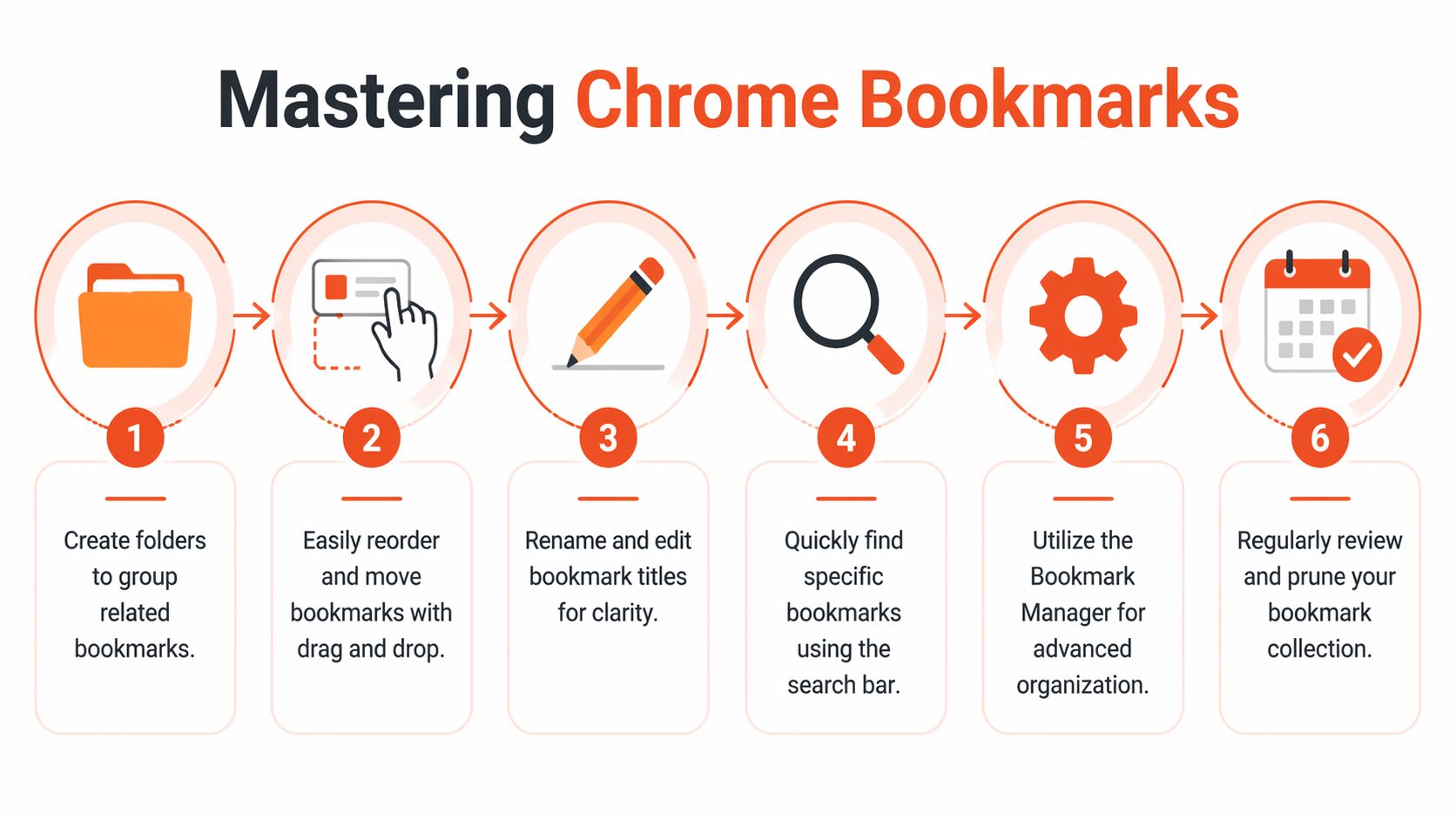
Choose folders based on how you expect to look things up later, not how the save felt in the moment.
Use project folders if you need to pull references during reviews, client calls, or active production. Use reference-type folders if you collect ideas across many jobs and regularly reuse the same examples for design, copy, motion, or product thinking.
Chrome on Android places saved pages inside Mobile bookmarks, and desktop Chrome gives you enough sorting and folder control to keep that collection usable. The limitation is not storage. It is recall. If folder names are vague, the library turns into a graveyard of "inspiration" links you never find again.
These naming patterns hold up in real work:
[ACME] Pricing pagesCheckout flows worth studyingDraft refs, Approved refs, ArchiveMobile nav, Brand systems, SaaS onboardingIf the rest of your workspace suffers from the same save-now-sort-later habit, this guide on how to organize digital files pairs well with bookmark cleanup.
Folders help you browse. Search helps you work under pressure.
Chrome supports @bookmarks in the address bar, which is often faster than drilling through nested folders when you already know the brand, topic, or phrase you are trying to recover. For creative research, that matters. The fewer clicks between idea and reference, the easier it is to stay in flow.
Use it like this:
Search only works if your bookmark titles contain language you would realistically type later.
Here’s a quick walkthrough if you want to see native bookmark management in motion:
Native Chrome tools can get you to a decent baseline, but they are still text-heavy and easy to outgrow once your library becomes part research database, part inspiration archive. For a more structured cleanup method, this practical guide on how to organize bookmarks is worth reading after you fix the basics.
The worst time to think about bookmark backup is after a Chrome profile breaks, sync stalls, or a phone upgrade leaves part of your research behind. If your bookmarks support client work, visual research, swipe files, or reference gathering, they need the same protection as drafts and source files.
Chrome on mobile does not include a direct export option. The practical method is to let mobile bookmarks sync to desktop Chrome, then export from there.
Use this path on desktop:
Do not save it to Downloads and forget about it. Name the file by date or project so you can find the right version later.
An export is more than a safety copy. It preserves the folder structure you already built, which matters if your library mirrors how you work: clients, campaigns, content pillars, reference types, or research phases.
That structure saves time later.
A flat pile of recovered links forces you to re-decide what everything was for. A clean export gives you a usable archive, a handoff file for a teammate, or a project snapshot you can reopen months later without rebuilding context from memory. If your process has already outgrown plain link lists, a visual bookmark manager for creative research can make those saved references easier to scan and reuse.
Use exports in a few situations:
Importing everything into a new setup often recreates the same clutter that slowed you down before. Review the exported HTML file as an archive decision, not just a transfer step.
Keep active folders available. Park old research in an archive. Leave behind duplicate saves, dead project folders, and low-value links you only kept out of habit.
This is also the right moment to separate working inspiration from published link collections. If part of your bookmark library eventually turns into a public-facing resource, studying examples of a strong link in bio grid can help you distinguish between private research storage and links meant for presentation. That line matters. Creative momentum drops when your archive, workspace, and shareable assets all live in one messy pile.
Native bookmarks are built for storage, not interpretation. That’s the core limitation.
A text list is fine when you remember exactly what you saved. It’s much less useful when you’re comparing homepage layouts, collecting brand references, reviewing ad libraries, or building a moodboard from live websites. Creative work depends on visual memory. Plain bookmark titles don’t support that very well.
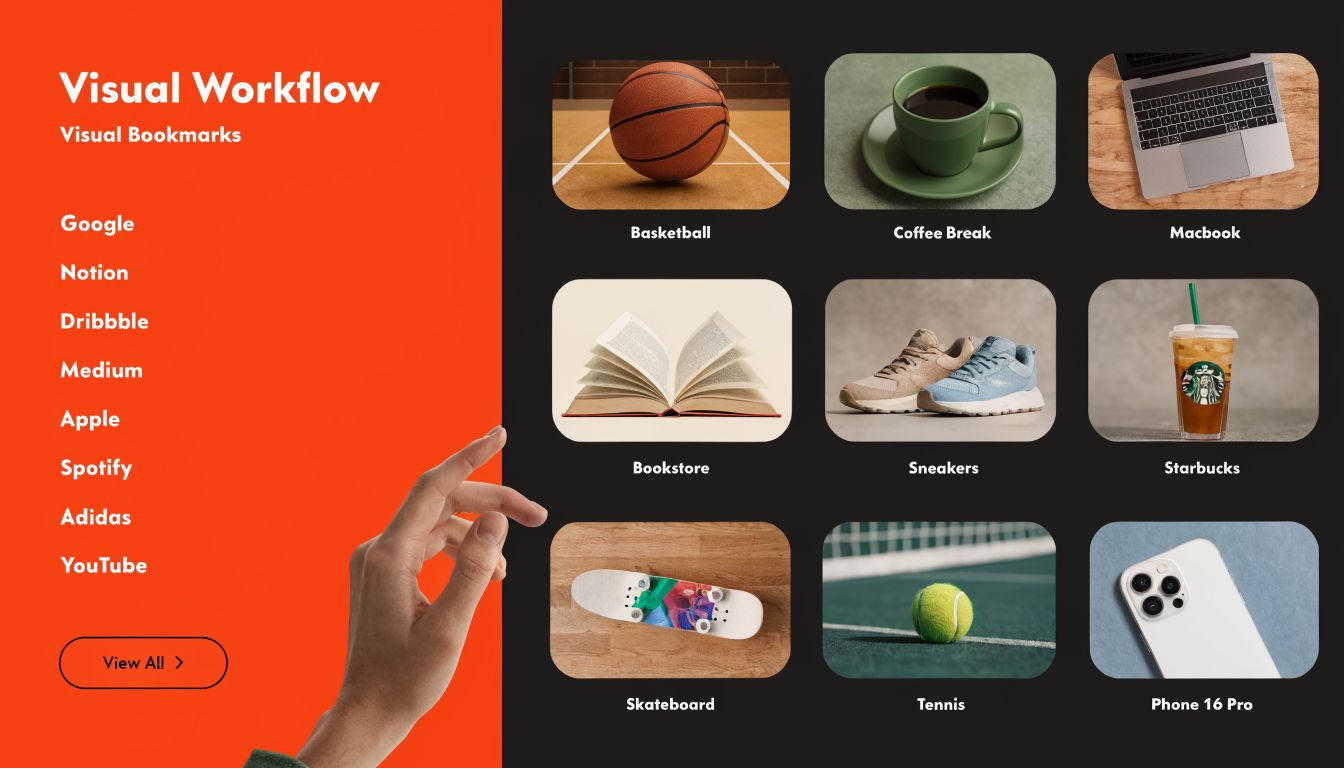
A folder called “Landing Page Ideas” sounds organized. In practice, it often holds dozens of links with no preview, no context, and no clue why each one was saved.
That creates friction in real work:
For social and creator workflows, the same logic applies to link presentation. This piece on building a better link in bio grid shows how visual arrangement helps people move through links faster than plain lists.
A visual bookmark workflow gives you recognition instead of recall. You don’t have to remember the exact title of a page. You spot the page by preview.
That’s useful when you’re:
A visual bookmark manager also tends to support the things native folders don’t handle elegantly, like tags, previews, flexible layouts, and cleaner sharing.
If you’re deciding whether that shift is worth it, this overview of what a visual bookmark manager is explains the difference well.
The more visual your work is, the less sense it makes to manage references as a stack of text labels.
That doesn’t mean Chrome bookmarks are useless. They’re still a solid capture layer. But once your library becomes part of active creative thinking, not just passive saving, a visual system usually fits better.
Sometimes not through the normal Chrome interface. On some Samsung or carrier-branded devices, users report that pre-installed bookmark folders can’t be removed in the standard UI and end up looking permanent. That issue is documented in Android Central discussions about undeletable Chrome mobile bookmarks.
If you’re dealing with one of those devices, basic Chrome editing may not be enough. Some users resort to ADB-based workarounds, but that’s a technical route and not broadly suitable. If the folder can’t be deleted in Chrome, the practical move is to work around it by keeping your own active folders clearly separated and ignoring the system clutter.
Sometimes. Chrome’s Android app data can include backup files such as Bookmarks.bak, but recovery isn’t a clean user-facing feature in the way many people expect. If a bookmark disappeared because of sync confusion, account switching, or accidental deletion, first check your other signed-in devices and exported HTML backups.
A practical lesson is preventive. If a bookmark library matters to your work, export it periodically instead of relying on recovery after the fact.
Usually because of where they came from. System-level folders, carrier-installed bookmarks, or synced items with account-state conflicts can behave differently from bookmarks you created manually on your current device.
Chrome on Android also has some interface limits compared with desktop. For example, certain actions feel more restricted in the mobile bookmark manager, which is why organization is usually easier from desktop even if capture starts on your phone.
If your bookmarks have outgrown plain folders, Bookmarkify is a practical next step. It helps you save, organize, revisit, and share visual bookmarks without turning your research library into another text-heavy archive.

Ivan S
Lead Marketing Designer @Scribe, Founder @bookmarkify

Effortlessly Save time and stay Inspired: Streamline your workflow with Bookmarkify. No more juggling 10 tabs and screenshots.