Last updated: March 2026
The Canvas Isn't Just a Whiteboard
When most people hear "infinite canvas," they picture sticky notes and flowcharts. That's what Miro and FigJam trained us to expect — a digital whiteboard for brainstorming sessions. And for that use case, those tools are great.
But an infinite canvas can do much more than host a brainstorm. For designers specifically, a spatial workspace becomes genuinely powerful when it's filled with real content you can interact with — not just sticky notes you'll delete after the meeting. Here are five workflows where a canvas transforms from a meeting tool into a core part of how you design.
1. Build Mood Boards With Live, Interactive Websites
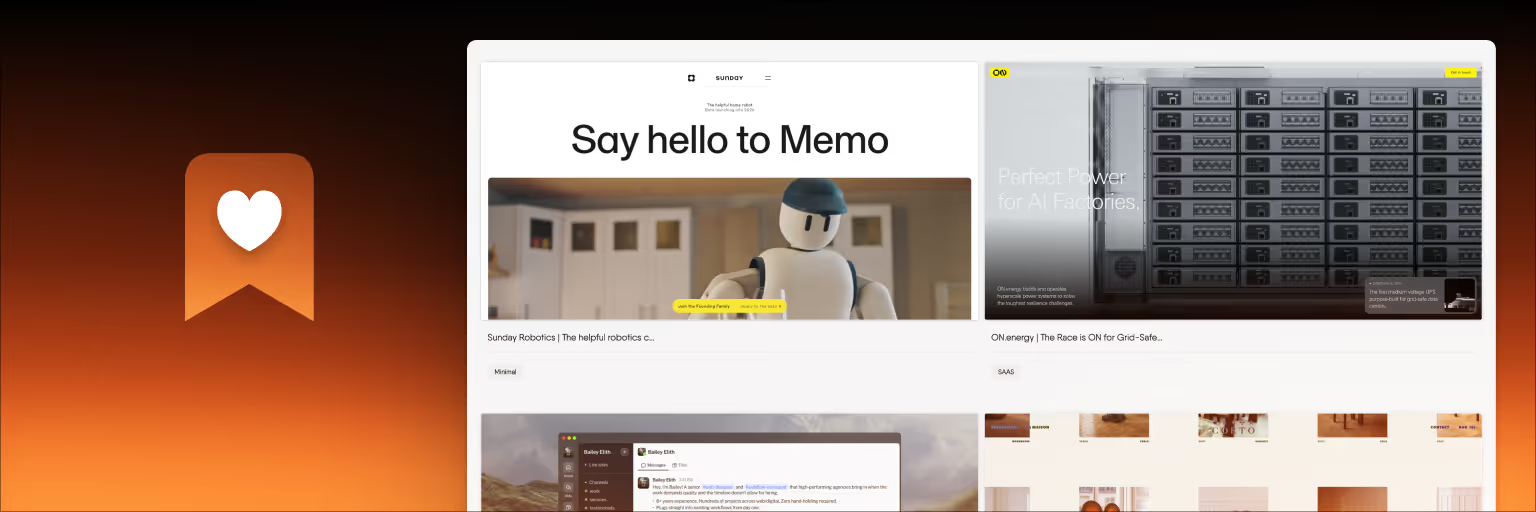
The most common way designers use a canvas outside of whiteboarding is for mood boards built with live websites. Instead of screenshotting reference sites and pasting static images onto a board, you save the actual websites and they remain fully interactive on the canvas.
In Bookmarkify, every saved website loads inside an iframe — you can scroll through it, click navigation elements, test hover states, and check how it responds on mobile. Arrange 10–15 reference sites spatially on the canvas, group them by theme or design pattern, and you have a mood board that actually shows how websites work, not just how they look in a frozen screenshot.
This matters because web design is interactive by nature. A static mood board loses the scroll behavior, the micro-interactions, the responsive breakpoints — everything that separates a good website from a great one. A live mood board preserves all of it.
Try this: Save 10 websites that match the direction for your next project. Open canvas mode, arrange them by visual style, and add notes explaining what you'd borrow from each one. Share the canvas with your client via URL — they can scroll through the references themselves.
2. Run Side-by-Side Competitive Analysis
Competitive analysis on a canvas is dramatically better than the traditional screenshot-in-a-slide-deck approach. When competitor websites are live on the canvas, you can actually test and compare how they work — not just how they looked at the moment you captured a screenshot.
The most effective layout is a grid: competitors as columns, page types as rows. This creates a visual matrix where you can scan horizontally to compare how different companies handle the same page type, or vertically to see one competitor's full experience. With live previews, you can switch to mobile view and instantly audit how each competitor handles responsive design — something that's impossible with screenshots.
Use Bookmarkify's Design Analyse feature to extract fonts, colors, and spacing from each competitor. Instead of writing "they use a nice blue," you get the exact hex value and font stack. Add notes with the connect tool to draw relationships between competitors that share patterns.
Try this: Save the homepage, pricing page, and one feature page from 5 competitors. Arrange them in a grid on the canvas. Spend 20 minutes scrolling through each one and noting patterns — what do they all do the same way? Where do they differ? What's missing that you could do better?
3. Curate a Persistent Design Reference Library
This is the workflow that separates casual inspiration collecting from building a real professional resource. Instead of using the canvas for a single project, use it as an evolving library of design patterns, UI references, and interaction examples that grows over time.
Create separate pages or folders on the canvas for different categories: navigation patterns, hero sections, pricing page layouts, mobile patterns, animation techniques. As you encounter great examples during your daily browsing, save them with tags and drop them into the relevant section. Over weeks and months, you build a searchable, visual, interactive library of design intelligence.
The key difference from a bookmark list or Pinterest board: everything on the canvas is interactive. When you need inspiration for a navigation redesign, you don't look at thumbnails — you scroll through 15 real navigation implementations, test how they collapse on mobile, and see how they handle scroll behavior. That depth of reference produces better design decisions than any mood board or screenshot folder.
Try this: Start with one category that's relevant to your current work — say, SaaS pricing pages. Over the next two weeks, save every well-designed pricing page you encounter. Tag each one and arrange them on a dedicated canvas page. When your next pricing design project comes up, you'll have a library of interactive references ready to go.
4. Present Design Direction to Clients With Interactive References
Client presentations typically involve a PDF of screenshots with annotations. The client squints at static images, tries to imagine how the website would actually feel, and gives feedback based on their interpretation of your frozen reference. It's a recipe for misalignment.
A canvas-based presentation changes the dynamic entirely. Share your canvas via Bookmarkify's URL sharing, and the client sees the same interactive references you've been working with. They can scroll through reference websites themselves, click through navigation, and experience the design direction firsthand — not through your screenshots.
Structure the presentation canvas intentionally: put your strongest direction-setting references large and central, supporting references smaller around the edges, and notes explaining your thinking connected to each reference. Walk the client through it on a call, scrolling through sites live and pointing out the specific patterns you're proposing to draw from.
Clients give better, more specific feedback when they can interact with references rather than interpret screenshots. "I like how that navigation works but want the transition to be faster" is actionable. "I don't like the layout" based on a screenshot is not.
Try this: Before your next client kickoff, build a canvas with 8–10 reference sites arranged by the design themes you're proposing. Add notes explaining your thinking for each cluster. Share the URL before the call so the client can browse on their own, then walk through it together on the call.
5. Hand Off Design Context to Your Team
The handoff between the designer who researched a project and the designer (or developer) who builds it is where context gets lost. The research lives in one place, the brief in another, the mood board in a third, and the reference URLs in a Slack thread from three weeks ago. By the time someone starts building, they're working from memory and fragments.
A canvas solves this by keeping everything spatial and connected. The reference websites are there — interactive, scrollable, annotated with notes about what to draw from each one. The connections between references show relationships. The folder structure maps to the project phases. A new team member can zoom out to see the big picture, then zoom into any reference to study it in detail.
This is particularly valuable for freelancers handing off to development partners, agencies transitioning between research and execution teams, or any project where the person who did the research isn't the person who builds the final product.
Try this: On your next project, build the research canvas with the intent that someone else will use it. Include notes that explain not just what you saved, but why — what should the developer pay attention to on each reference site? What specific interactions or layouts should they study? The extra 10 minutes of annotation saves hours of back-and-forth later.
Why These Workflows Need Interactive Content
All five of these workflows share a common thread: they're only possible when the content on the canvas is interactive. A canvas full of screenshots is just a bigger mood board — useful, but limited. A canvas full of live, scrollable, clickable websites is a design research environment.
That's the fundamental difference between using Miro or FigJam as a canvas (where everything is static) and using Bookmarkify (where saved websites remain fully functional). For brainstorming with sticky notes, the static tools are fine. For any workflow that involves studying how websites actually work, you need the content to be alive.
Bookmarkify's free plan includes canvas mode with up to 12 bookmarks — enough to try any of the five workflows above on your next project. The Pro plan removes the bookmark limit and adds all six view modes, tags, Design Analyse, and team collaboration.
Frequently Asked Questions
What is an infinite canvas used for besides whiteboarding?
Designers use infinite canvases for mood boarding with live website references, competitive analysis with side-by-side website comparisons, building persistent design reference libraries, presenting design direction to clients with interactive references, and handing off research context to team members. These workflows require content on the canvas to be interactive — something only Bookmarkify offers with its live website previews.
Can I use Bookmarkify's canvas for free?
Yes. Bookmarkify's free plan includes canvas mode with up to 12 bookmarks. That's enough to build a focused mood board, run a competitive analysis of 3–4 competitors, or start a reference library for one project. The Pro plan removes the bookmark limit and adds all view modes, tags, Design Analyse, and sharing.
How is Bookmarkify's canvas different from Miro?
The key difference is that Bookmarkify saves websites as live, interactive previews — you can scroll through them, click on them, and test responsive behavior on the canvas. Miro treats web content as static screenshots or link embeds. For workflows that involve studying how websites work (mood boards, competitive analysis, reference libraries), Bookmarkify's interactive approach captures information that Miro's static approach loses.
Can my team collaborate on a canvas?
Yes. Bookmarkify has a collaboration mode where team members can save websites to shared workspaces, add notes, tag content, and build reference collections together. You can also customize workspace branding and share collections via unique URLs — useful for client presentations or cross-team alignment during the research phase of a project.
Do I need to use both Bookmarkify and a whiteboard tool like FigJam?
It depends on your workflow. If you run team brainstorms and workshops, FigJam or Miro are better for that — they have sticky notes, voting, timers, and facilitation tools. If you collect web inspiration, build mood boards, or run competitive analysis, Bookmarkify handles those workflows better. Many designers use both: Bookmarkify for the research and reference phase, FigJam for the collaborative ideation phase.