The Screenshot Graveyard on Your Desktop
Open your Downloads folder right now. Scroll past the PDFs and zip files. How many screenshots of websites are buried in there? Fifty? Two hundred? Now ask yourself: when was the last time you actually found and used one of those screenshots for a project?
For most designers, the honest answer is almost never. The screenshot-hoarding cycle goes like this: you find a website with a beautiful hero section or a clever navigation pattern, you hit Cmd+Shift+4, you save it to your desktop or a "Design Inspiration" folder, and then it disappears. A week later, you vaguely remember seeing something perfect for your current project, but you can't find it. You scroll through hundreds of identically-named files, none of which tell you what site they came from, what you liked about them, or whether the design still exists online.
This isn't a personal failing. It's a systems problem. Screenshots are the wrong format for saving web design inspiration, and no amount of folder organization will fix that fundamental mismatch.
Why Screenshots Fail Designers
A screenshot captures a single frozen frame of something that was designed to move, scroll, respond, and interact. The moment you press the capture button, you lose almost everything that made the design worth saving in the first place.
You lose interactivity. The hover state on that button? Gone. The way the navigation collapsed on scroll? Invisible. The micro-interaction on the form field? Frozen. You're left with a photograph of a website, not a website.
You lose responsive behavior. A screenshot shows one viewport size at one moment. How does that layout handle a tablet? What happens on mobile? You'd need three separate screenshots just to understand one responsive decision — and even then, you can't test the breakpoints yourself.
You lose context. A cropped screenshot of a hero section tells you nothing about how it relates to the content below the fold. The rhythm between sections, the scroll pacing, the way the page builds an argument — all gone when you capture a single frame.
You lose findability. A file named "Screenshot 2026-03-14 at 10.42.17.png" tells you nothing about what's inside. Even if you rename files diligently, you can't search across screenshots by design pattern, color palette, or client project the way you can with tagged bookmarks.
You lose the source. Three months later, when you want to revisit that site to check an update or study a different page, you have no link. The screenshot is a dead end.
The System That Replaces Screenshot Hoarding
The fix isn't better folder organization or a new naming convention. It's saving websites in a format that preserves what you actually care about: how the site looks, how it works, and how to find it later. Here's a five-part system that replaces the hoarding habit with a library you'll actually use.
Part 1: Save the Website, Not a Screenshot
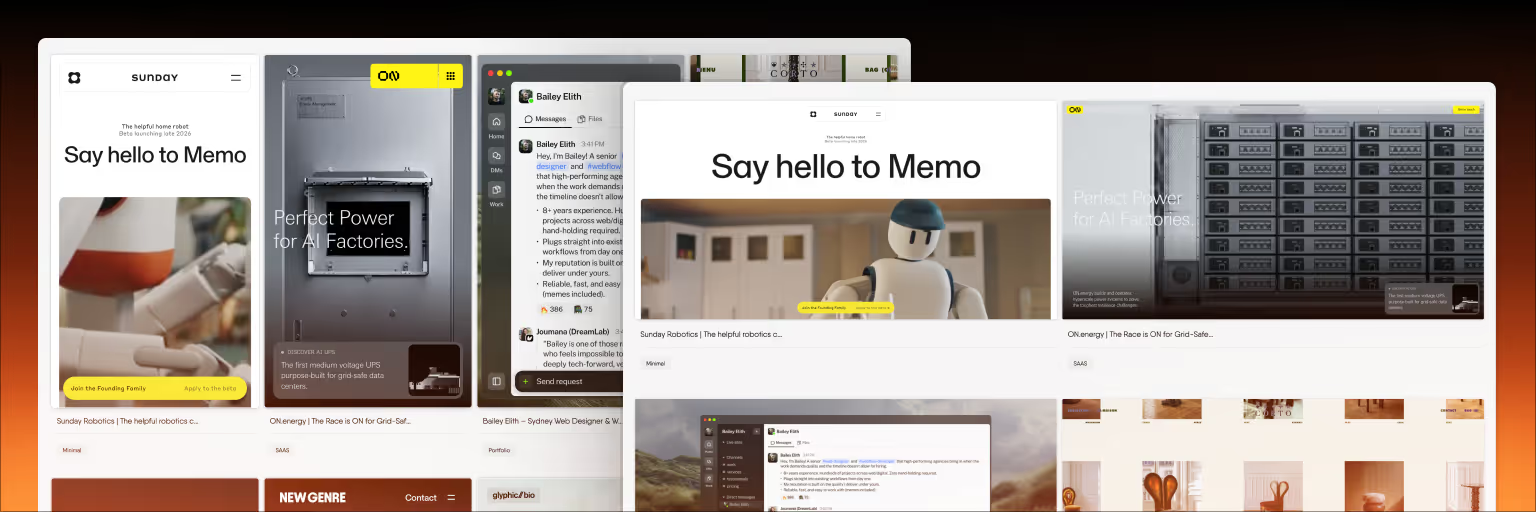
The single biggest change is switching from capturing images of websites to saving the websites themselves. Bookmarkify saves any website as a live, interactive preview through a Chrome extension. When you find a site worth saving, one click captures the full page — not as a static image, but as a functional website you can scroll through, click on, and interact with later.
This means the hover states are still there. The scroll behavior still works. The responsive layout can still be tested. You're saving the actual design, not a photograph of it.
Part 2: Tag Immediately, Not Later
The second biggest mistake (after using screenshots) is saving things with the intention of organizing them "later." Later never comes. Instead, tag every reference at the moment you save it. Spend five seconds adding 2–3 tags: the client or project name, the design element that caught your attention ("navigation," "hero," "typography," "animation"), and optionally the visual style ("minimal," "bold," "editorial").
Tags are more powerful than folders because a single reference can belong to multiple categories without being duplicated. A website with a great navigation pattern AND a beautiful color palette gets both tags, and shows up when you search for either one.
Part 3: Use View Modes to Browse Visually
One of the reasons screenshots accumulate is that text-based bookmark lists are terrible for visual browsing. You can't see what a link contains without clicking it, so you stop looking through your bookmarks at all.
Bookmarkify solves this with six view modes: a 2-column grid, a 3-column triple grid, a long scrollable view, fullscreen mode, mobile preview, and a classic list view. The grid views let you scan your entire library visually — like looking at a wall of design references in a studio, not a spreadsheet of URLs. The mobile preview mode lets you check responsive behavior across your whole collection.
Part 4: Extract Design Details, Don't Just Admire Them
A screenshot of a beautiful website is passive. You can look at it, but you can't easily pull out the specific font family, the exact hex values of the color palette, or the spacing patterns that make the layout work. Extracting those details manually requires opening the site in a browser, launching developer tools, and hunting through CSS.
Bookmarkify's Design Analyse feature does this automatically. Point it at any saved website and it extracts fonts, colors, gradients, and assets. "I like the blue on that site" becomes "the primary blue is #2563EB, paired with Inter at 16/24 for body text." That level of specificity makes references actionable, not just inspirational.
Part 5: Arrange Spatially When You Need to Think
For active projects, switch to infinite canvas mode and arrange your references spatially. Group sites by theme, resize cards to indicate importance, add notes explaining what you're drawing from each reference, and draw connections between sites that share a pattern. This transforms a collection of saved websites into a design thinking environment.
The canvas is particularly useful at the start of a project, when you're moving from scattered inspiration to a clear direction. Spending 10–15 minutes arranging references on a canvas before opening Figma consistently produces better first drafts than jumping straight into design.
Building the Habit: From Hoarding to Curating
The hardest part of this system isn't the tools — it's breaking the screenshot reflex. Here's how to make the transition:
Install the extension and unlearn Cmd+Shift+4. Replace the screenshot shortcut with the Bookmarkify extension click. It takes the same amount of time but saves something infinitely more useful.
Start with one project, not your entire backlog. Don't try to organize 2,000 old screenshots. Start fresh with your next client project. Save 10–15 references using the new system, tag them properly, and experience the difference when you actually need to find something.
Spend 15 minutes weekly curating, not collecting. Set a recurring calendar block for "inspiration review." Use it to browse design sites, save references with tags, and remove anything from your library that's no longer relevant. Curation is what separates a useful library from a digital junk drawer.
Share your library with teammates. If you work with other designers, Bookmarkify's collaboration mode lets everyone contribute to a shared reference library. This multiplies the value of the system — you benefit from references your teammates find, and vice versa.
What to Do With Your Existing Screenshots
You don't need to migrate your screenshot collection. Most of those files have already lost their value — the websites they captured have likely been redesigned, and the screenshots don't contain enough context to be useful anyway.
If you have a small number of screenshots you genuinely reference regularly, reverse-search them to find the original URLs (Google Lens or TinEye work for this) and save those sites to Bookmarkify instead. For everything else, archive the folder and move on. The goal is building a better system going forward, not cataloging the past.
The Real Cost of Disorganized Inspiration
Disorganized design references don't just waste time — they lower the quality of your work. When you can't quickly access relevant references, you make design decisions from memory rather than evidence. You default to patterns you've used before instead of drawing from a broader range of approaches. You present mood boards with whatever you can find quickly rather than the best examples you've encountered.
A well-maintained reference library is a competitive advantage. It means starting every project with a curated set of relevant references rather than a blank canvas and a vague memory of something you saw three months ago. It means showing clients specific, interactive examples of the direction you're proposing rather than hoping they'll interpret your screenshots the way you intend.
The system described here takes less time than screenshot hoarding once it's habitual. The difference is that the time invested produces something you'll actually use.
Frequently Asked Questions
How is saving websites in Bookmarkify different from browser bookmarks?
Browser bookmarks save a URL as a text link in a folder. Bookmarkify saves the website as a visual, interactive preview you can scroll through and study without opening a new tab. It adds tagging for flexible organization, multiple view modes for visual browsing, and a Design Analyse feature for extracting fonts and colors. Browser bookmarks become an unusable list once you pass 50–100 saves; Bookmarkify stays browsable at any scale.
What if I need screenshots for client presentations?
You can still take screenshots when you specifically need a static image for a slide deck or document. The point isn't to eliminate screenshots entirely — it's to stop using them as your primary system for saving design references. Save the interactive website for your own research; take a screenshot when you specifically need a static image for communication. For many presentations, sharing a live mood board with interactive websites is more effective than a PDF of screenshots anyway.
Can I use the free plan to build a reference library?
Bookmarkify's free plan includes Grid Mode and up to 12 bookmarks, which is enough to test the workflow and build a focused library for one project. For designers managing references across multiple clients, the Pro plan removes the bookmark limit and unlocks all six view modes, tags, dark mode, and Design Analyse.
How many design references should I save?
Quality beats quantity. For any single project, 10–15 highly relevant references are more useful than 50 loosely related ones. For your overall library, there's no upper limit — as long as everything is tagged properly, a library of hundreds of references remains searchable and useful. The key is being intentional about what you save and tagging it immediately rather than saving everything and hoping you'll organize it later.
Will this system work for non-web design inspiration?
Bookmarkify is optimized for web design references since its core feature is interactive website previews. For inspiration from other sources — photography, illustration, physical products, print design — tools like Milanote or Eagle may be more appropriate. Many designers use Bookmarkify for web-specific references and a complementary tool for non-web visual assets.